
This article provides a step-by-step guide on how to add your business details to your account on the RDB One Stop Center platform.
Requirements
To add business details, you must:
Have an active Irembo account
Have a valid Tax Identification Number (TIN)
Step 1: Log in to Your Account
Visit the RDB One Stop Center platform: onestopcentre.rdb.rw
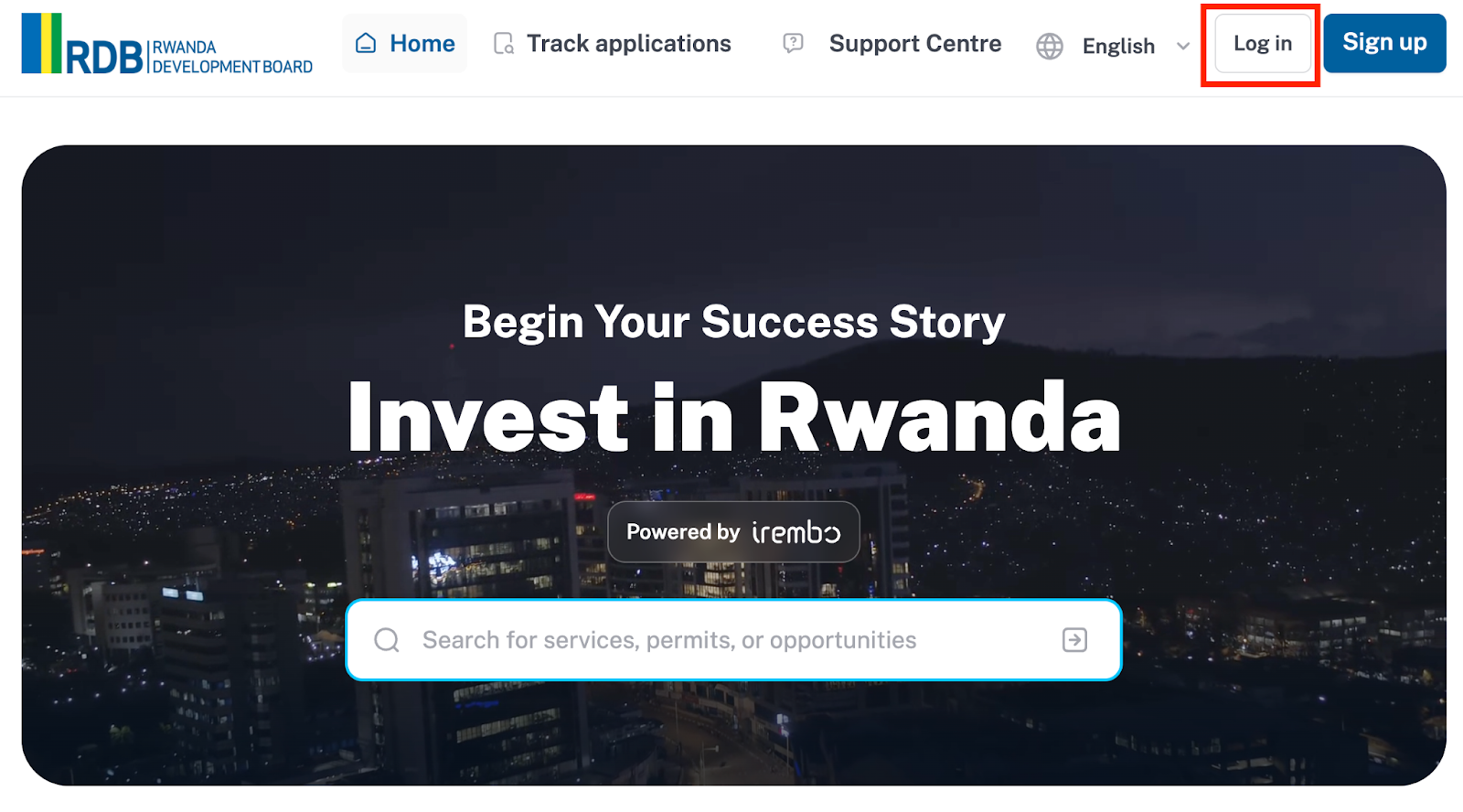
Click on Login.
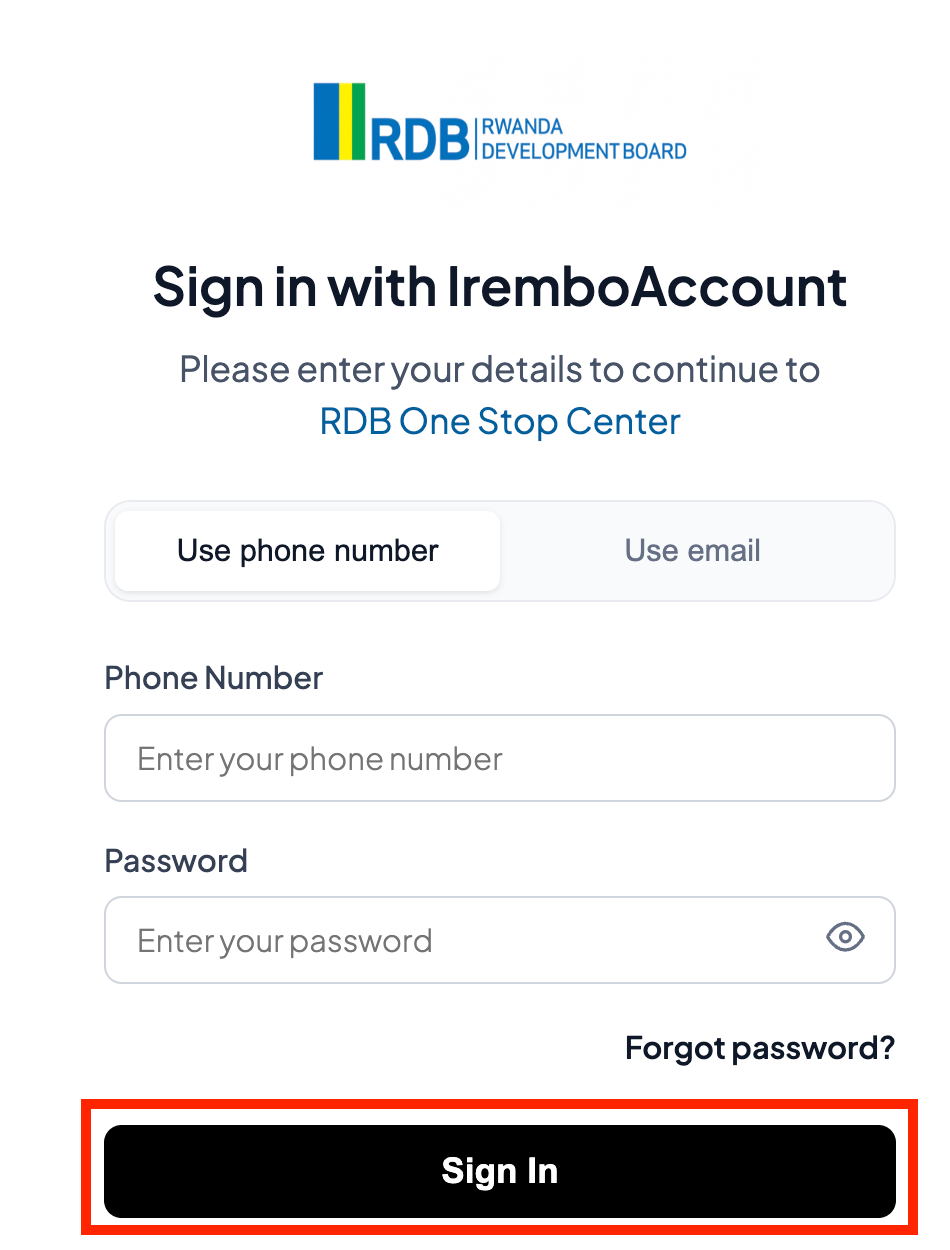
Enter your phone number or email address and password, then click Sign in.
Note: Use the password you created during account registration.
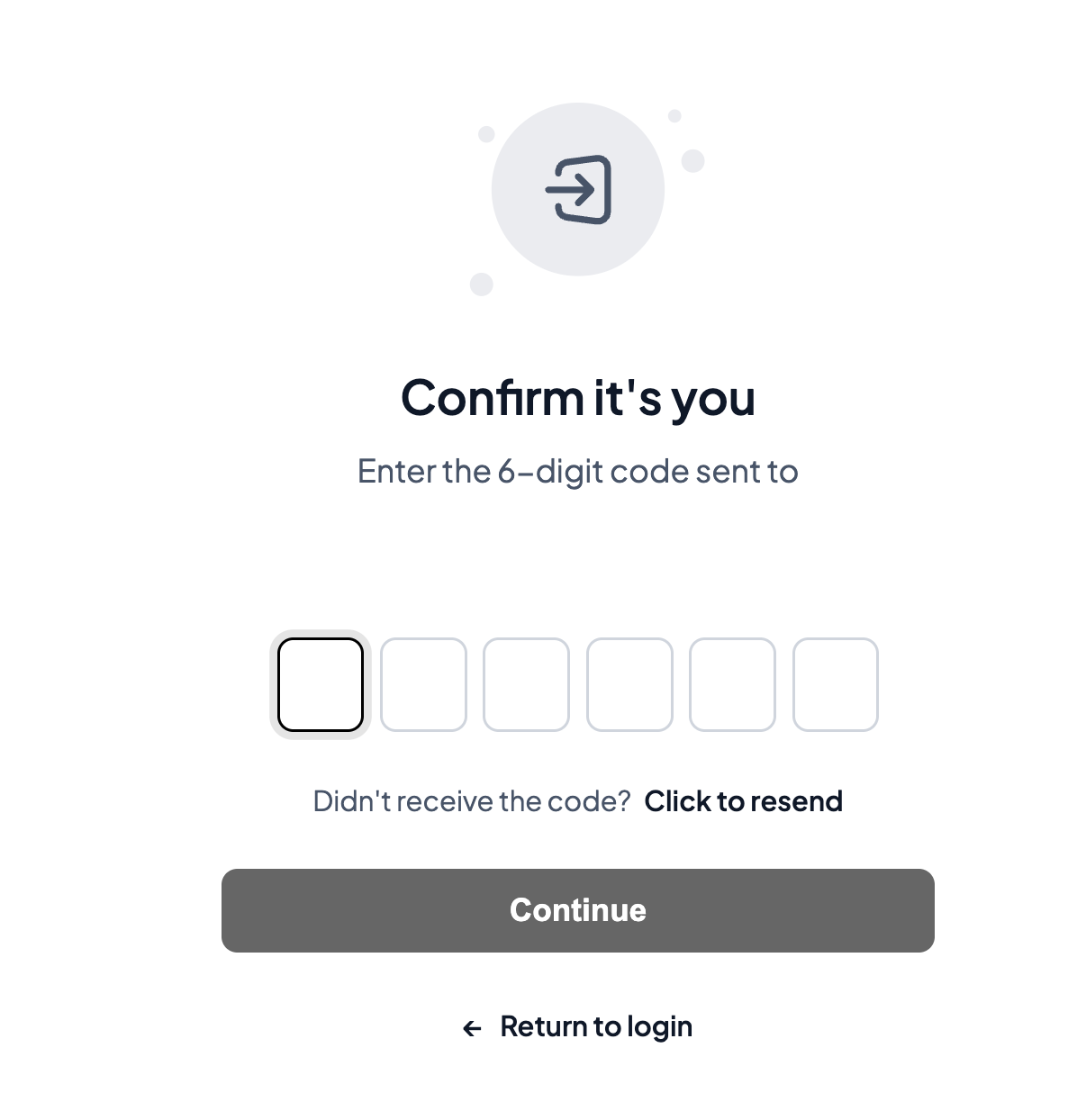
A verification code (One-Time Password – OTP) will be sent to your phone number via SMS or to your email.
Enter the OTP and click continue.
Once verified, you will be logged in successfully.
Step 2: Add your business details
Click on my application
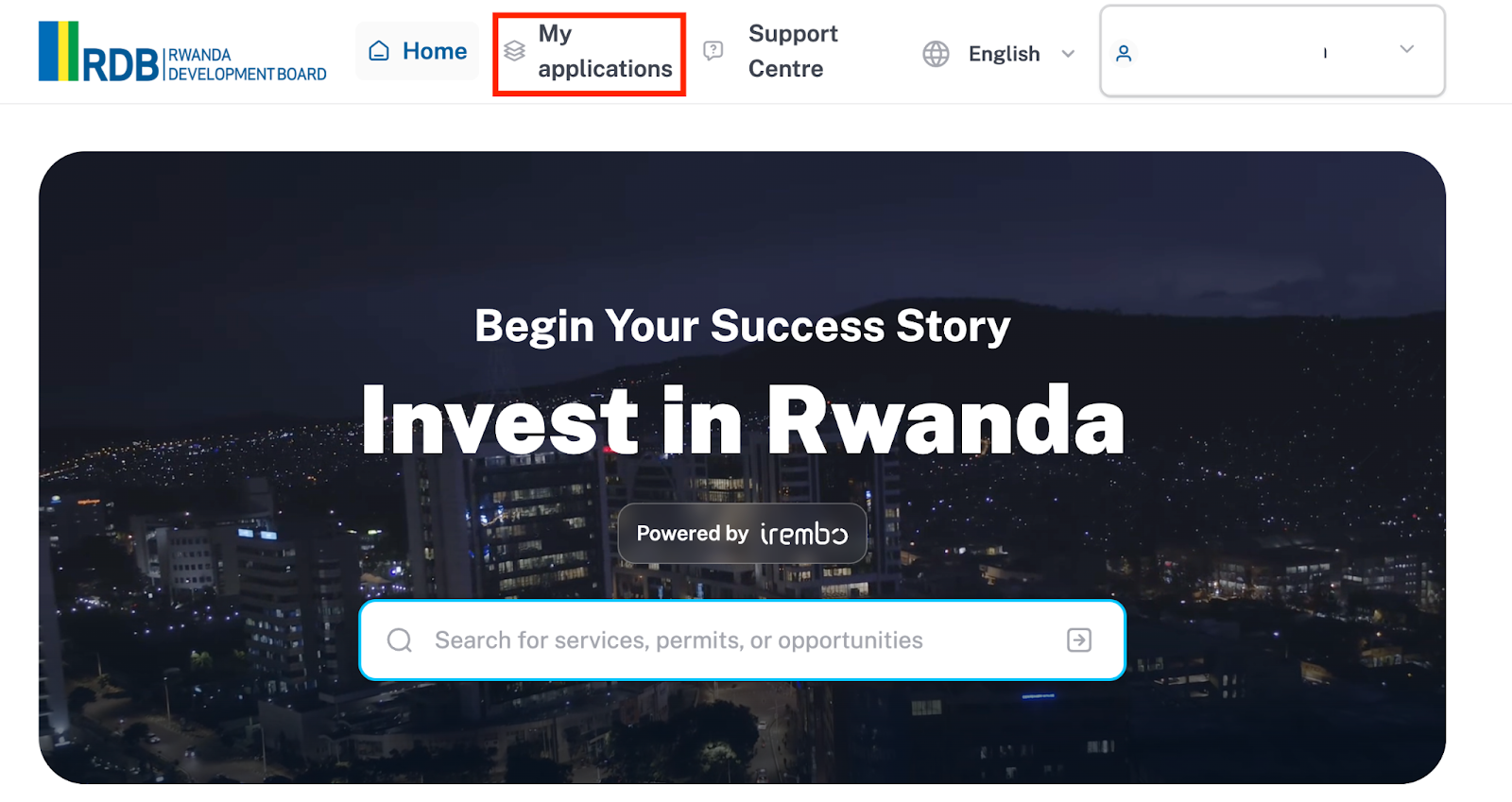
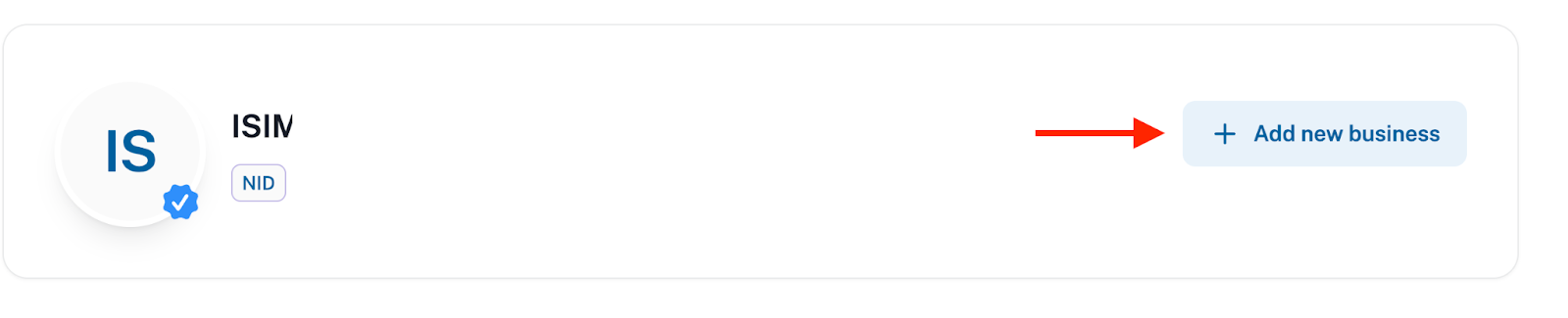
Click on "Add Business."
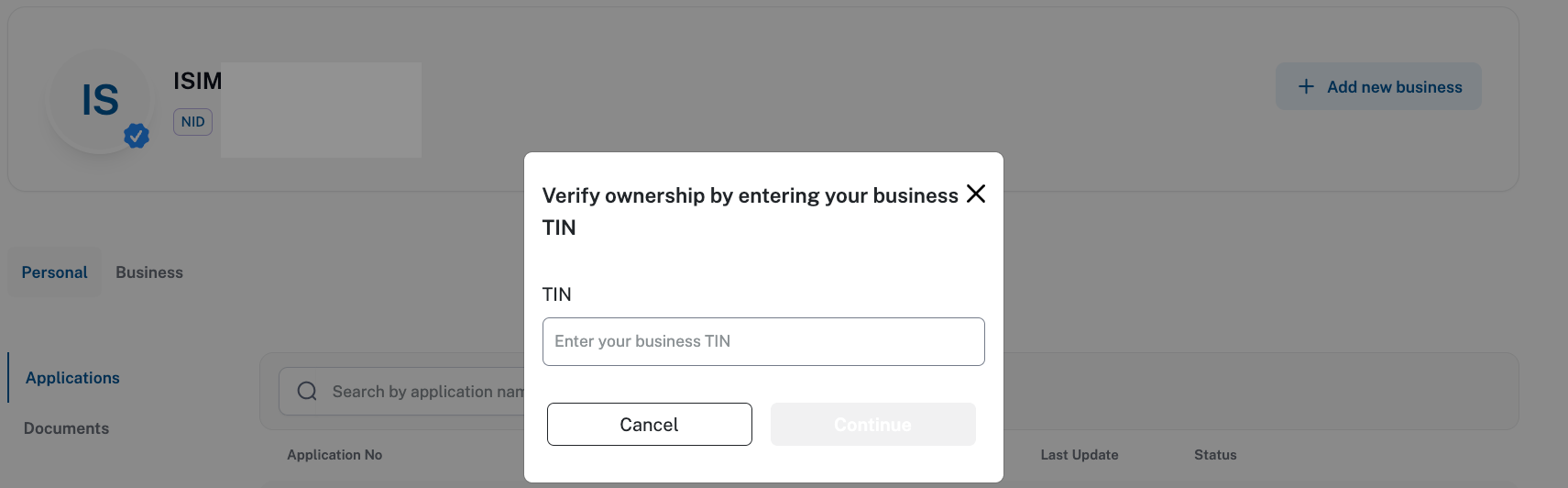
Enter your Tax Identification Number (TIN)
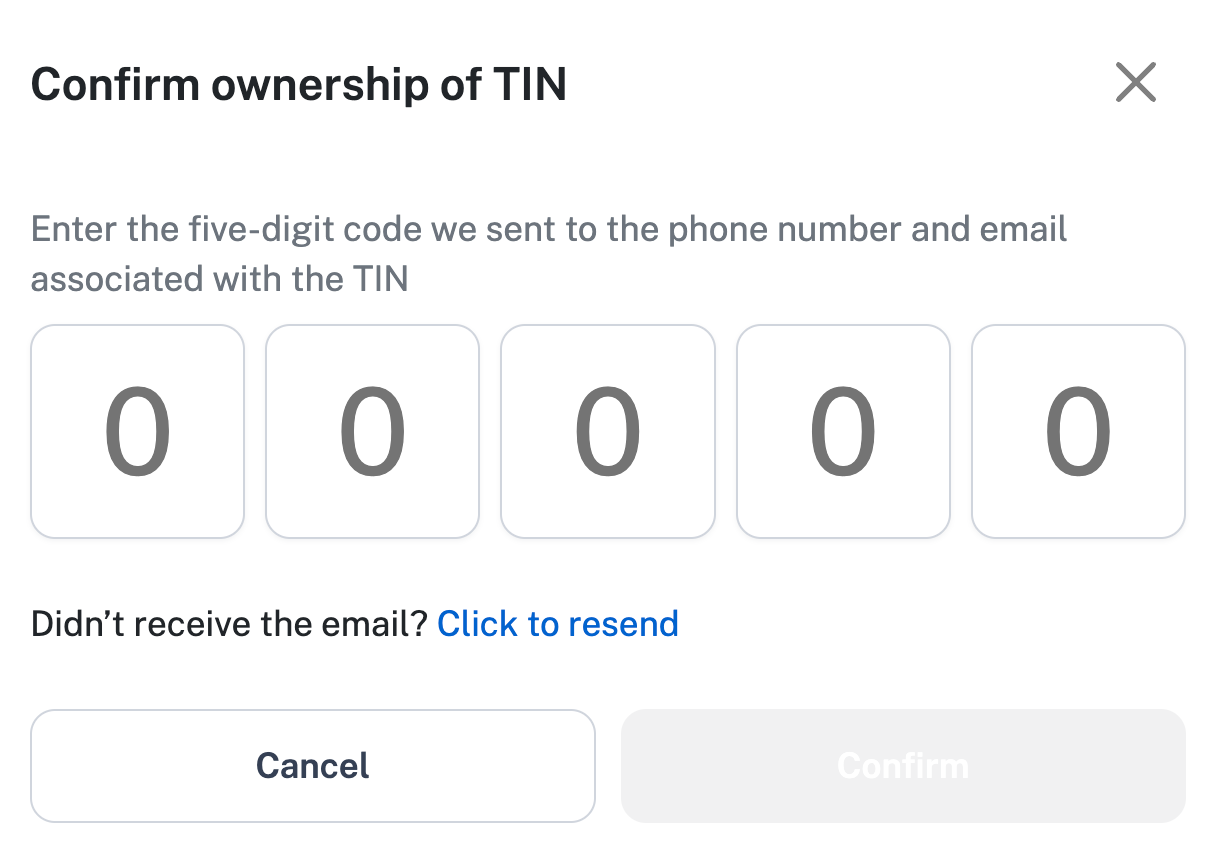
Fill in the code sent to your phone number associated with the TIN
Your business details will then be added to your account successfully.

Was this article helpful?
That’s Great!
Thank you for your feedback
Sorry! We couldn't be helpful
Thank you for your feedback
Feedback sent
We appreciate your effort and will try to fix the article